

Report on Faculty Activity, Administration, and Accreditation
Various activity, administrative, and accreditation reports can be generated within Faculty Activity Reporting (FAR, Faculty180) for information purposes, based upon a user's permissions. For example, a provost might have permission to access all reports at the university level and below, while deans might only have access to reports for their colleges. Once a report has been generated, it can be exported to Microsoft Word/Excel format or Adobe PDF. Reports can also be printed on a standard printer.
There are two basic components to running reports. Selecting the faculty and selecting the data to include in the report. Additional options may be available, depending on the type of data in the report.
Check out this article on how to Request LCME Accreditation Reporting for more information.
Report on Faculty Activity, Administration, and Accreditation
-
Run Activity Input Report
- Click the Actions dropdown at the top of the page to select the Print, Export, or Graphing option to output the date.
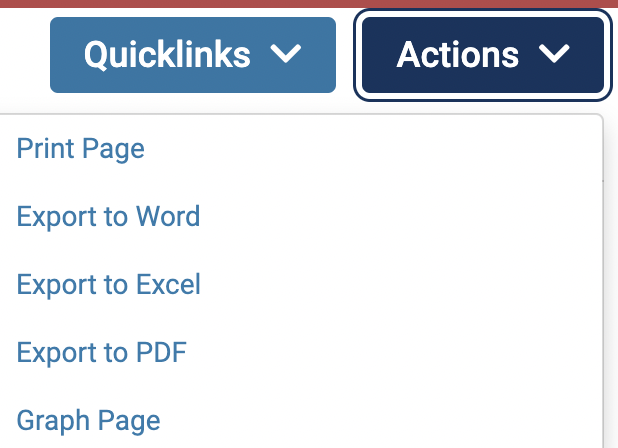
- Click the Actions dropdown at the top of the page to select the Print, Export, or Graphing option to output the date.
- After clicking the Apply button, scroll down to view the report.
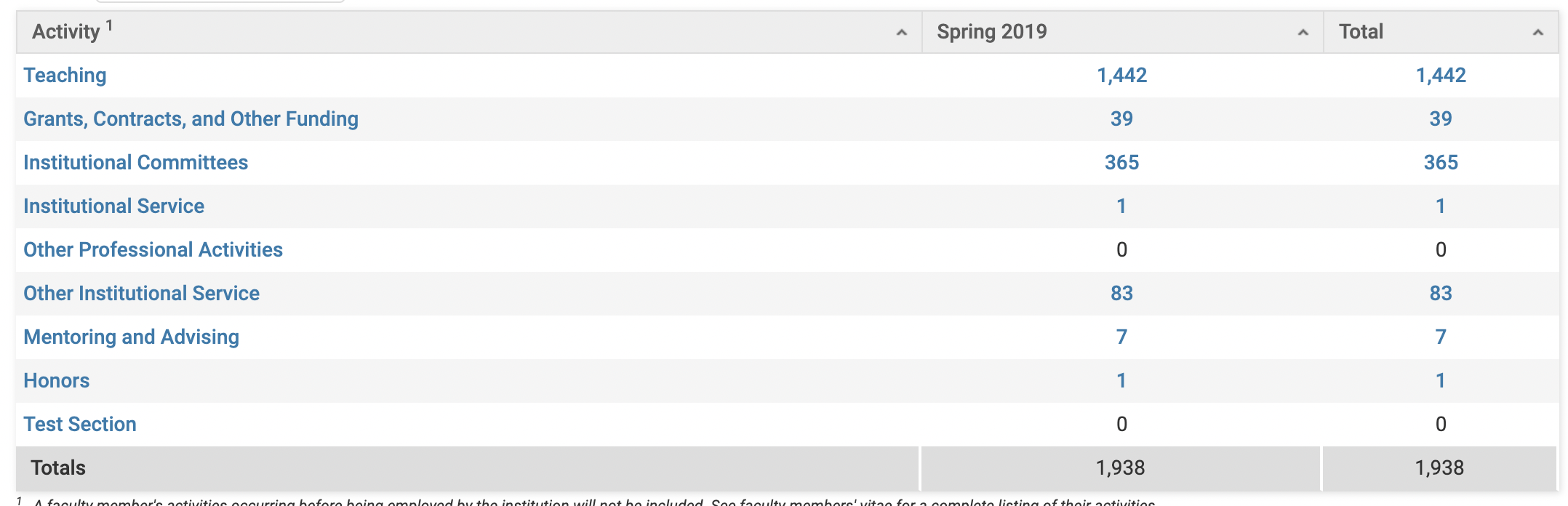
To sort the data in the report by a particular column, click the column heading. The report is sorted by the selected column.
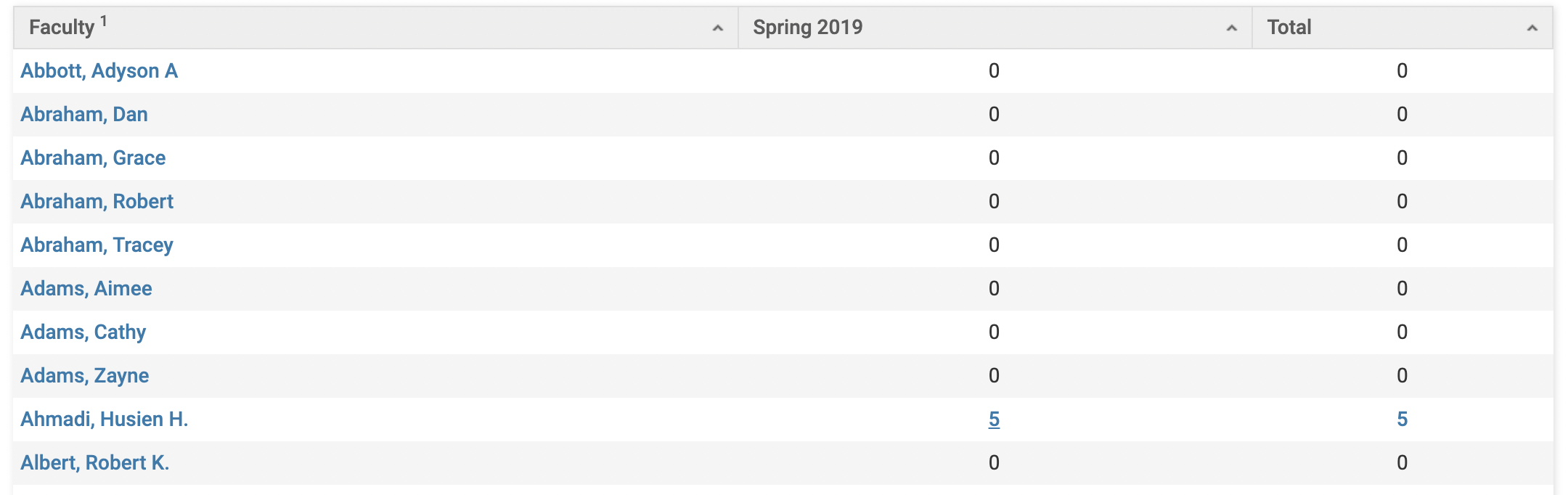
- Click on the numeric totals under Spring 2019 and adjacent to the desired activity. This will display the data by faculty.
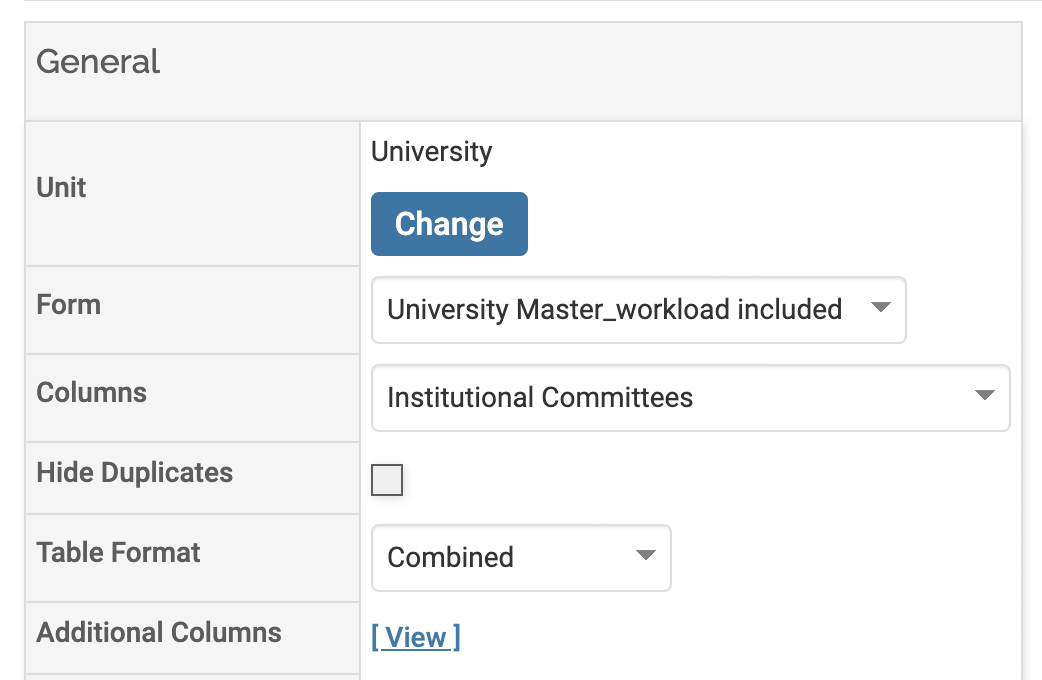
- Click the [View] button under General to add activity classifications to the report, which will automatically update with the new columns.
- Click the Edit (pencil) icon to edit the data
Types of Reports
| Category | Report Types |
|---|---|
| Activity | |
| Administrative | |
| Administrative AACSB – 2020 (Business) |
|
| LCME (Medicine) | Table 4.2-1: Pulls information about your Medical faculty's scholarly productivity, including peer-reviewed journal articles, published books and chapters, faculty co-investigators or primary investigators on extramural grants, and other peer-reviewed scholarship defined by your institution. |
| Regional Accreditation |
|
FAQ
How can an institution export a departing faculty member’s FAR data?
FAR does not currently provide a dedicated export containing all data for a single faculty member. Depending on the information needed, administrators can use one of these approaches:
- Run Back Up Data for the faculty member’s unit, then remove the records belonging to other faculty members from the exported files.
- Generate a Vita or Listing report for the faculty member. These reports can capture much of the faculty member’s information, but may not include every field or activity stored in FAR.
Faculty members preparing to leave an institution should also follow the guidance in Collect Your Data When Leaving an Institution before their institutional access ends.
Why do some characters look incorrect in Excel exports?
Why do some characters look incorrect in Excel exports?
When exporting large Activity Input Reports from FAR to Excel, some special characters (such as apostrophes, hyphens, or quotation marks) may appear incorrectly. For example, users may see characters like —, Äú, or Äôs instead of standard punctuation. This occurs because Excel may not automatically apply the correct text encoding when opening the exported file.
To avoid character display issues, import the report into Excel instead of opening it directly by following these steps:
- Open Excel
- Select Data > Get Data > From File > From Text/CSV
- Choose the downloaded report file
- Set File Origin to 65001: Unicode (UTF‑8)
- Select Import
This ensures that punctuation and special characters render correctly.