

Overview of Interfolio's Homepage
The Interfolio homepage for institutions is the central place for faculty members within Interfolio, no matter what product they use. After logging in, and choosing an institutional account, users will be directed to the Interfolio homepage where they will see their navigation bar options (which vary depending on their permissions and Interfolio products used by the institution) and their “My Tasks” list. This article will cover the different action items one may see while using Interfolio sorted by product type.
Default sorting order for “My Tasks” section
The events from the “My Tasks” list appears in the following order:
- Items with a due date
- Priority (see tables below)
There is no triple sort. After sorting by due date then priority, Engineering has confirmed that the sorting order is random.
My Tasks Section
The "My Tasks" section on the Homepage is meant to highlight items that require attention or action from the user. It displays a list of read and unread tasks with direct access links. Depending on the event, it may also display the position’s unit, position type, open date, priority, or a flag identifying the action required.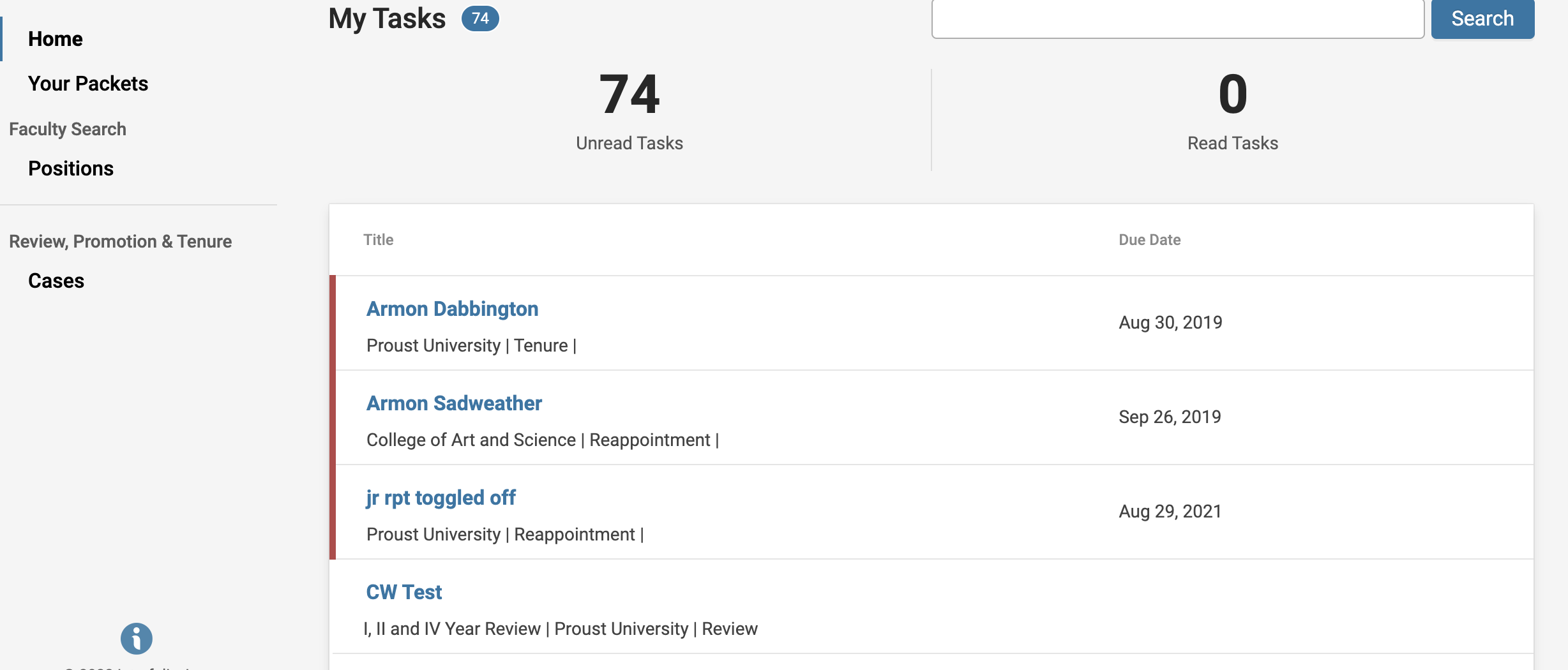
Please note the following features:
- The number of all read and unread tasks will display at the top of the page.
- The Search bar allows users to search through tasks by keyword.
- The most recent tasks will display on the homepage. Title, and Due Date (if a due date exists) will display.
- Click ‘View All’ at the bottom of the My Tasks list to see the expanded list of tasks.
Example “My Tasks” Items
Faculty Search
In Faculty Search (FS), an item may appear under “My Tasks” which links directly to the related position, application, or download. The items displayed are specific to the user’s current responsibilities and update as committee access and approval workflows change.
Tasks are removed from the “My Tasks” list when the:
- User no longer has an active committee assignment
- Position/application is archived, withdrawn, or closed
- Approval workflow is completed
| Event Trigger | Language | Persona(e) | Due Date Included? | Priority | Item is removed when |
|---|---|---|---|---|---|
| FS approver rejects a position |
|
|
X |
1 | Position is moved forward again in the approval process |
| FS position requires approval |
|
|
X |
1 | Position is rejected or moved forward in the approval process |
| FS position is assigned to me |
|
|
X |
2 | |
| Requested document download is ready |
|
|
X |
2 |
Review, Promotion & Tenure
In Review, Promotion, and Tenure (RPT), an item may appear under “My Tasks” and link directly to the related case, message, document, or download. The items displayed are specific to the user’s current responsibilities and update as the case moves through the review workflow.
A case stays on the task list for candidates until it is closed. For committee members, the case will leave the task list once it moves to the next step and they no longer have access to review it.
Tasks are removed from “My Tasks” when:
- A case advances from the committee’s review step and the user no longer has access.
- The user is removed from the committee responsible for the current step.
- The case is closed.
| Event Trigger | Language | Persona(e) | Due Date Included? | Priority | Item is removed when |
|---|---|---|---|---|---|
| I have an outstanding request to submit a packet for an RPT review case |
|
|
✔ |
1 | When packet is submitted |
| A packet document from an RPT case has been shared with me |
|
|
✔ |
1 | |
| An RPT case is assigned to me |
|
|
✔ |
2 | When the case is moved forward in the workflow |
| A packet document from an RPT case has been shared with me |
|
|
✔ |
2 | |
| A requested document download is ready |
|
|
X |
2 |
Faculty Activity Reporting
| Event Trigger | Language | Persona(e) | Due Date Included? | Priority | Item is removed when |
|---|---|---|---|---|---|
| Complete an Evaluation |
|
|
✔ |
1 | Evaluation review step due date has passed |
| Activity Input Request |
|
|
✔ |
1 | Activity Input Period due date has passed |
| Custom faculty classification form request (FAR) |
|
|
✔ |
2 | |
| Review possible duplicate scholarly works from CCV/ORCID import (FAR) |
|
|
X |
2 | |
| Verify that I am a co-author for a work entered by another user (FAR) |
|
|
X |
2 | Activities are accepted or rejected |
| Assign activity classifications to an imported scholarly work (FAR) |
|
|
X |
2 | Activity Classifications are assigned and saved |
FAQ
How to Switch Between Interfolio Accounts?
If you have access to both personal and institutional Interfolio accounts, switching between them is simple.
- Navigate to your name in the top right-hand corner of the screen.
- Click the down arrow to open the drop-down menu.
- Under Switch Accounts, click the name of the account you want to access.
You will then be directed to the selected account.